Setting Up Your DUO MFA
Illinois Wesleyan University requires multi-factor authentication (MFA) for campus user accounts. All IWU users must enroll in a Duo MFA method when logging in for the first time. We recommend using a computer for your first sign-in.
1. Begin the Duo setup
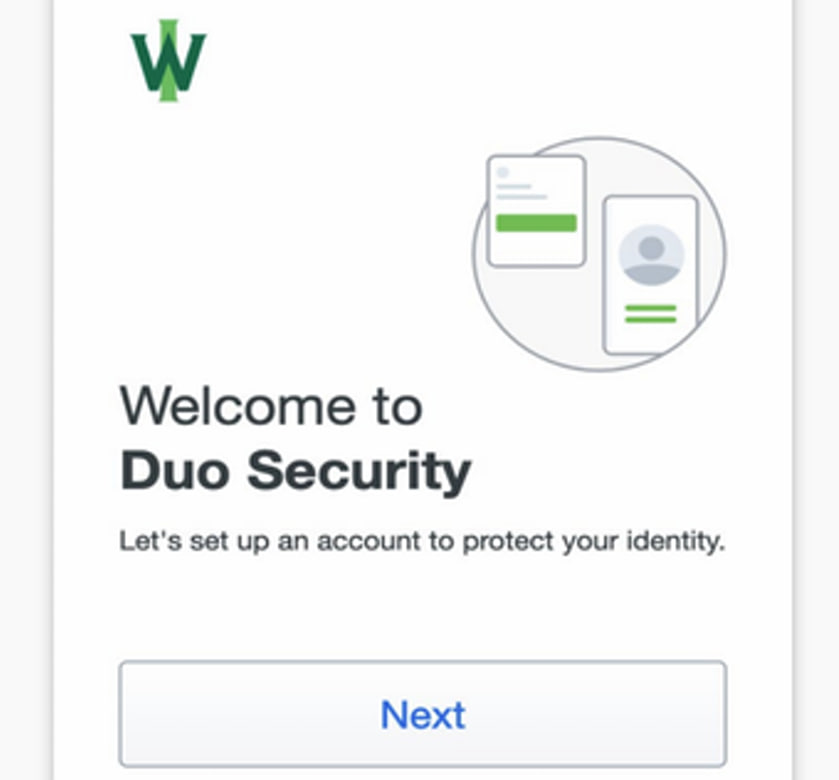
After you have created a unique password for your IWU account and sign in for the first time, the Duo setup prompt will appear automatically.
Select Next to begin setting up Duo MFA.
2. Choose Duo Mobile
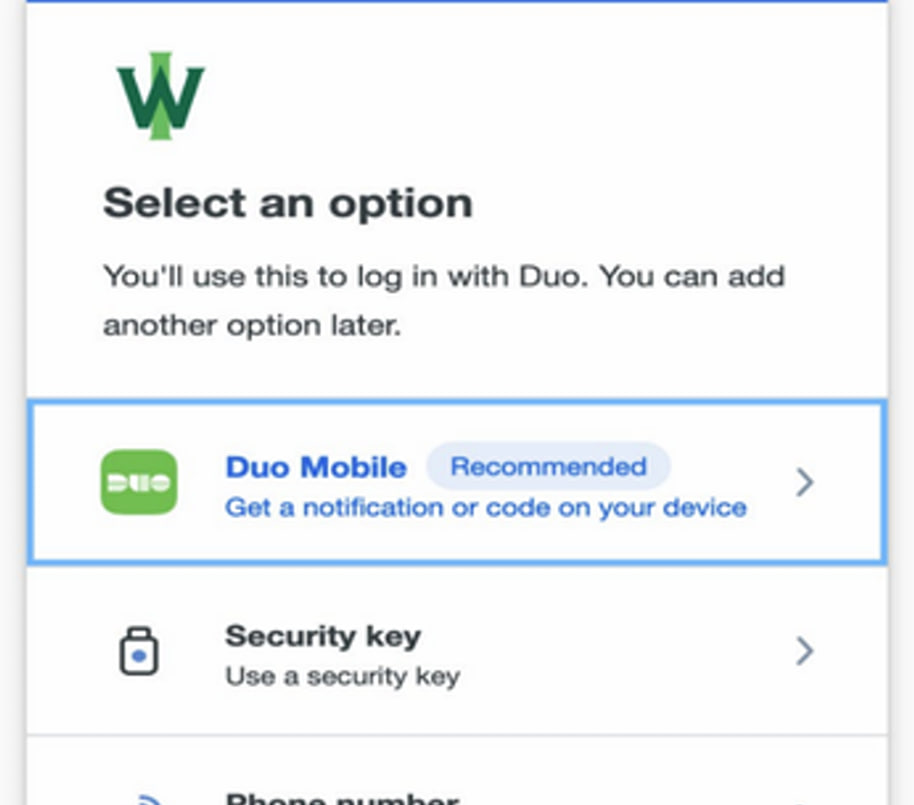
When asked to select an authentication method, choose Duo Mobile.
Duo Mobile allows you to approve sign-in requests using push notifications on your mobile device.
3. Download the Duo Mobile app
Download the Duo Mobile app to your phone from App Store or Google Play
After installing the app, return to the Duo setup on your computer.
4. Scan the QR code with the Duo Mobile app
A QR code will appear on your computer screen. Open the Duo Mobile app on your phone and use the app to scan the QR code. It connects the Duo Mobile app to your IWU account.
Do not scan the QR code using your phone's regular camera app. Use the scanner inside the Duo Mobile app.
5. Approve Duo notifications
Make sure notifications are enabled for the Duo Mobile app. When Duo sends a push notification to your device during sign-in, open the notification and select Approve to authenticate your login.
Need Help?
If you have trouble setting up Duo MFA, contact the ITS Service Desk:
- Email: it@iwu.edu
- Phone: (309) 556-3900
- Visit the ITS Service Desk page for additional assistance.